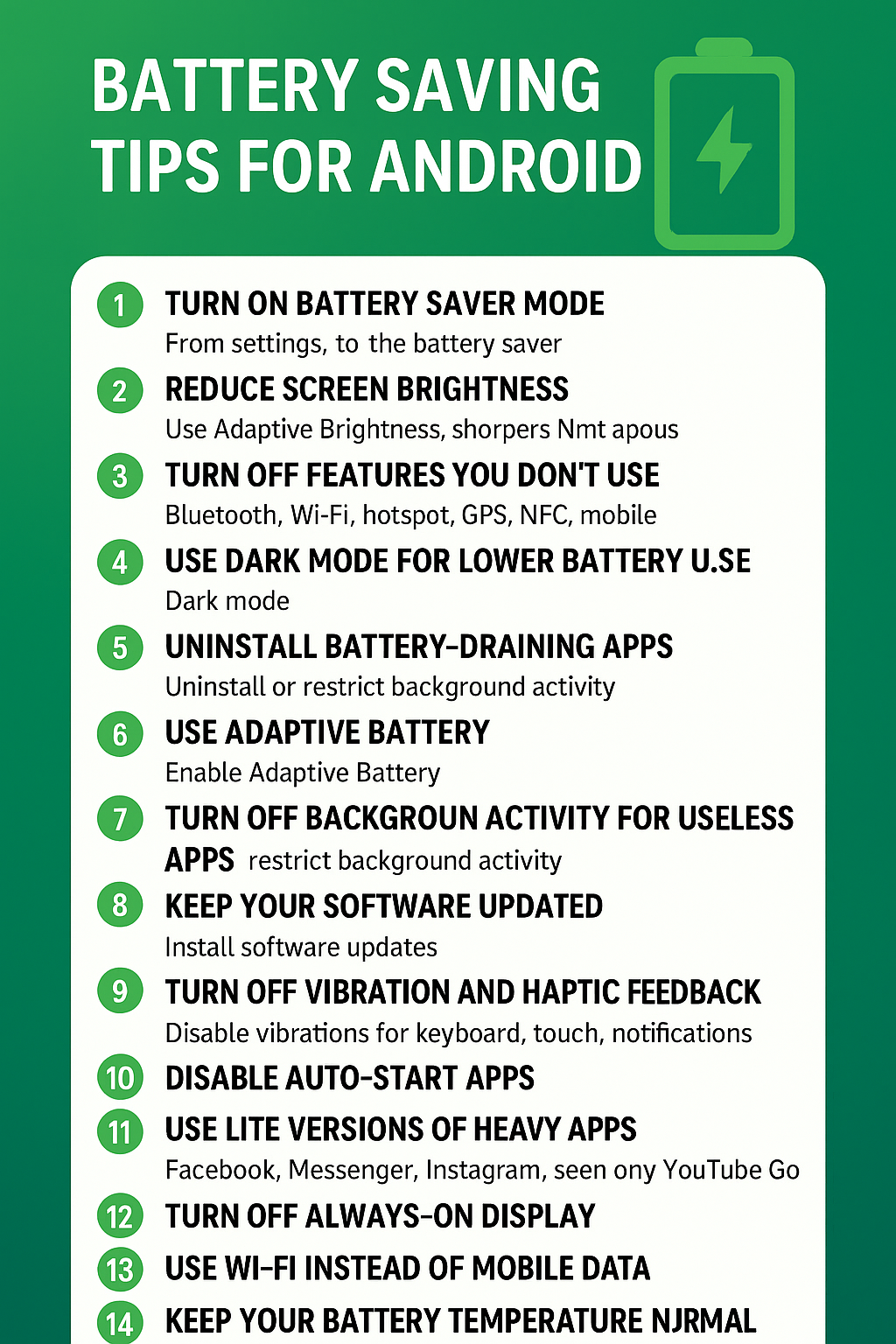
In this guide, I will share the best battery saving tips for Android using simple and easy English. These tricks work on almost all Android devices, and you don’t need any expert knowledge. Let’s begin!
Battery life is one of the most common problems for Android users. No matter how good your phone is, when the battery drains fast, it becomes frustrating. The good news is that Android has many built-in options that can help you save battery and make your phone last much longer. Most people don’t know these features, but once you use them, your battery timing will improve instantly.
1. Turn On Battery Saver Mode
The easiest way to save battery is by turning on Battery Saver Mode. This feature reduces background activity, limits apps, and controls brightness to save energy.
How to turn it on:
- Open Settings
- Tap Battery
- Turn on Battery Saver
When used regularly, this is one of the most effective battery saving tips for Android.
2. Reduce Screen Brightness
Your screen consumes more power than any other part of your phone. Keeping brightness high all the time will drain your battery quickly.
Use these tips: battery saving tips for Android
- Lower screen brightness manually
- Use Adaptive Brightness
- Reduce Screen Timeout (30 seconds is enough)
These small adjustments make a big difference in battery life.
3. Turn Off Features You Don’t Use
Many features stay active in the background even when you don’t need them.
Turning them off can help save battery.
Consider turning off:
- Bluetooth
- Wi-Fi
- Hotspot
- GPS
- NFC
- Mobile Data (when not needed)
You can also disable Auto Sync if you want to save even more battery.
4. Use Dark Mode for Lower Battery Usage
If your phone has an AMOLED or OLED screen, Dark Mode can save a lot of battery. Dark pixels consume less energy compared to bright ones.
To enable:
Settings → Display → Dark Theme
Apart from saving battery, Dark Mode is easier on the eyes too.
5. Uninstall Battery-Draining Apps
Some apps consume too much battery in the background. Social media apps, games, and poorly optimized apps can drain battery even when you’re not using them.
How to check:
Settings → Battery → Battery Usage
Here you can see which apps use the most power. You can uninstall, force stop, or restrict background activity.
6. Use Adaptive Battery
Android has a smart feature called Adaptive Battery. It learns how you use your phone and limits battery for apps you rarely open.
Enable it:
Settings → Battery → Adaptive Battery
This is one of the smartest battery saving tips for Android, and most users never turn it on.
👉 Official Google Battery Optimization Guide:
https://support.google.com/android/answer/7664692
7. Turn Off Background Activity for Useless Apps
Not all apps need to run in the background. You can manually restrict background activity for apps you don’t use often.
How:
Settings → Apps → Select App → Battery → Restrict Background Activity
This will stop the app from using your battery silently.
8. Keep Your Software Updated
Android updates often include battery improvements and bug fixes.
Running an outdated version may cause battery drain.
Go to Settings → System → Software Update and install updates if available.
9. Turn Off Vibration and Haptic Feedback
Vibration uses more power than regular sound. If you want to save battery, turn off vibration features.
Turn off:
- Keyboard vibration
- Touch vibration
- Notification vibration
- Call vibration
You can keep only important ones if you prefer.
10. Disable Auto-Start Apps
Many apps automatically start running when you turn on your phone. This drains battery without your knowledge.
You can disable auto-start from:
- Phone Manager (on some devices)
- App Settings in Android
This reduces background power usage.
11. Use Lite Versions of Heavy Apps
Apps like Facebook, Messenger, and Instagram consume a lot of battery.
Using their Lite versions saves both battery and storage.
Examples:
- Facebook Lite
- Instagram Lite
- Messenger Lite
- YouTube Go
These apps use less RAM and run smoothly on every device.
12. Turn Off Always-On Display
If your phone has Always-on Display, it shows the time and notifications on the lock screen all day.
This looks nice but consumes battery.
Turning it off improves battery life significantly.
13. Use Wi-Fi Instead of Mobile Data
Mobile data consumes more battery than Wi-Fi. If possible, use Wi-Fi whenever available.
Also, if your signal is weak, your phone uses extra power to maintain connection.
14. Keep Your Battery Temperature Normal
Battery drains faster when your phone becomes too hot.
Avoid:
- Playing heavy games for long hours
- Keeping the phone in direct sunlight
- Charging while gaming
Heat damages battery health permanently.
👉 More Android tips you will love:
https://tech2point.com/10-best-android-tips/
👉 Discover hidden features inside Android phones:
https://tech2point.com/hidden-features-in-android-phones/
Final Words
These battery saving tips for Android are simple, practical, and effective. If you follow them daily, your phone will last much longer on a single charge. Android gives you many tools to save battery, but most people never explore them. With these tricks — from Dark Mode to Adaptive Battery and managing background apps — you can improve battery life without installing any extra apps.
FAQ Section (battery saving tips for Android )
1. How can I increase battery life on my Android phone?
You can increase battery life by lowering screen brightness, using Battery Saver mode, turning off unused features like Bluetooth/GPS, and uninstalling apps that run in the background. Small changes can make a big difference.
2. Does Dark Mode save battery on Android?
Yes, Dark Mode helps save battery, especially on AMOLED screens. Dark pixels use less power, so using Dark Mode all day can reduce battery drain.
3. Why does my Android battery drain so fast?
The main reasons are high brightness, background apps, heavy social media usage, location always ON, and old apps that keep running even when you close them.
4. How can I stop apps from running in the background?
Go to Settings → Battery → Background Activity and turn off background usage for apps you don’t need. This can save a lot of battery.
5. Does restarting the phone help save battery?
Yes, restarting clears small bugs and closes hidden apps. It improves performance and reduces battery drain.
6. Is it safe to use Battery Saver mode all the time?
Yes, Battery Saver mode is completely safe. It limits background activity and makes your phone last longer, especially when the battery is low.
7. Does fast charging reduce battery life?
Fast charging is safe, but using it too often can heat the battery. It’s better to avoid fast charging when not needed.
8. Should I keep Wi-Fi ON or mobile data ON for better battery?
Wi-Fi uses less battery than mobile data. If Wi-Fi is available, always prefer it.
9. At what battery percentage should I charge my phone?
Keep your battery between 20% to 80% for long-term health. Avoid letting it go below 10%.
10. Does updating apps help improve battery life?
Yes, updated apps run smoother and drain less battery. Always keep your software and apps updated.